Users
In the Users section, organizers can determine the event's accessibility by designating it as either Public or Private. This section also allows for inviting specific users to private events and provides a shareable link for easy access.
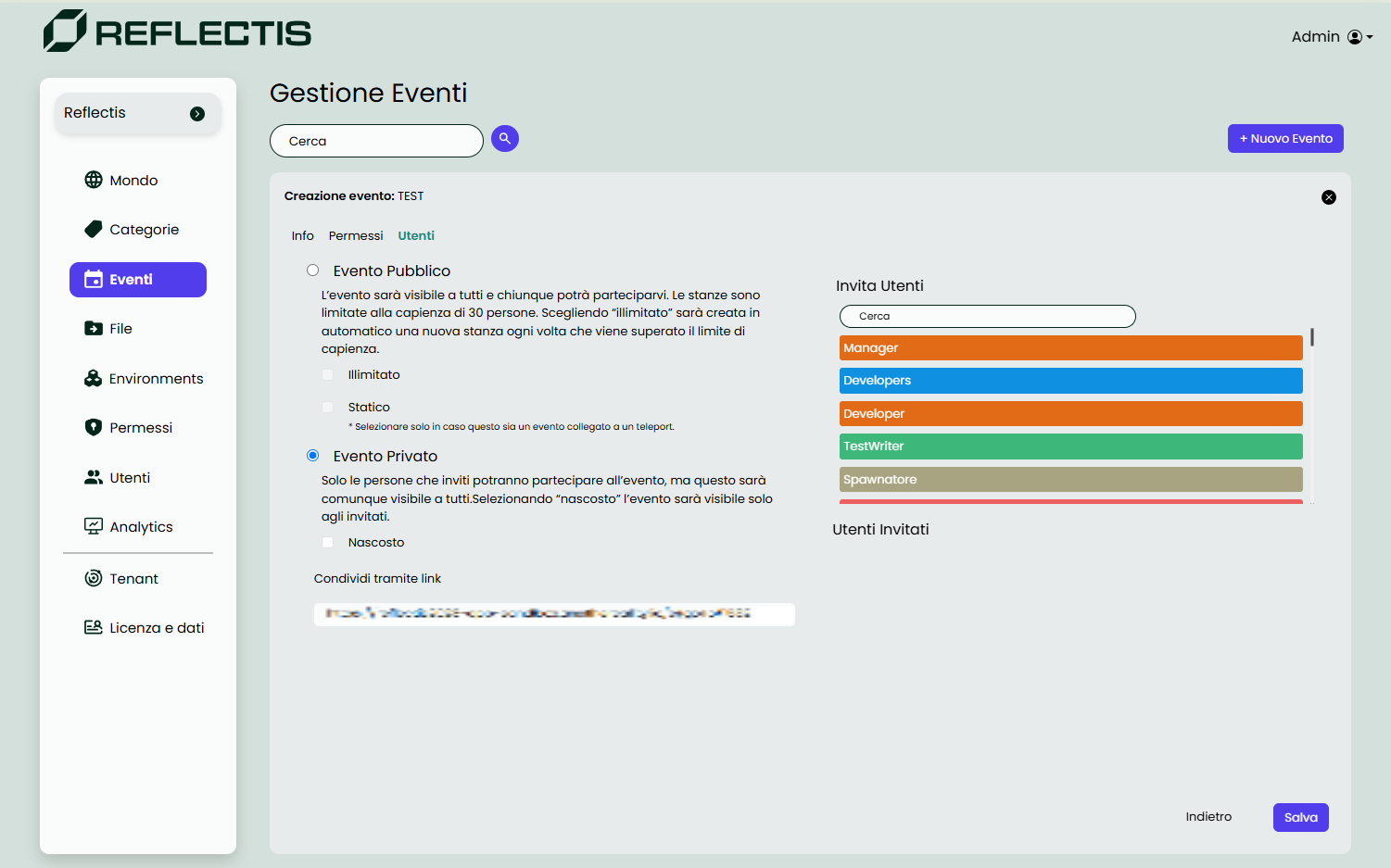
Event Accessibility
- Public Event
- The event will be visible to all users, and anyone can join, with a capacity limit of 30 participants per room. If the "Unlimited" option is selected, a new room will automatically be created each time the capacity limit is exceeded.
- Static Event: This option is only available for events that are linked to a teleport feature. A Static Event is a special type of event that remains permanently active within an environment, allowing users to enter at any time. It can act as the default entry point for users when they arrive in the environment, or it can provide a persistent experience that users can revisit whenever they want. Environments with a Static Event can be associated with the Scene Changer component in the lobby. Scene changers are teleport tools that transport users to specific environments and can be configured and modified through the SDK creator kit.
Each environment should have only one Static Event.
- Private Event
- Only invited users will be able to participate in the event. However, organizers can choose whether the event will be visible to everyone or remain hidden from all users except invited guests.
- Hidden: Selecting this option will make the event visible only to invited users.
Inviting Users
On the right side of the page, organizers can search for and select specific roles or users to invite to the private event. Invited users will appear in the Invited Users list below.
Shareable Link
For both public and private events, a shareable link is available, allowing organizers to easily distribute access to the event. This link can be copied and shared with participants for direct access to the event.
Navigation
Once the accessibility options and user invitations have been set, click the Save button at the bottom right to finalize the event. To return to the previous page and adjust other event details, use the Back button.